Design-time considerations
Workflow overview
In order to make your robot possible to export, you need to follow some conventions. The summary is as follows:
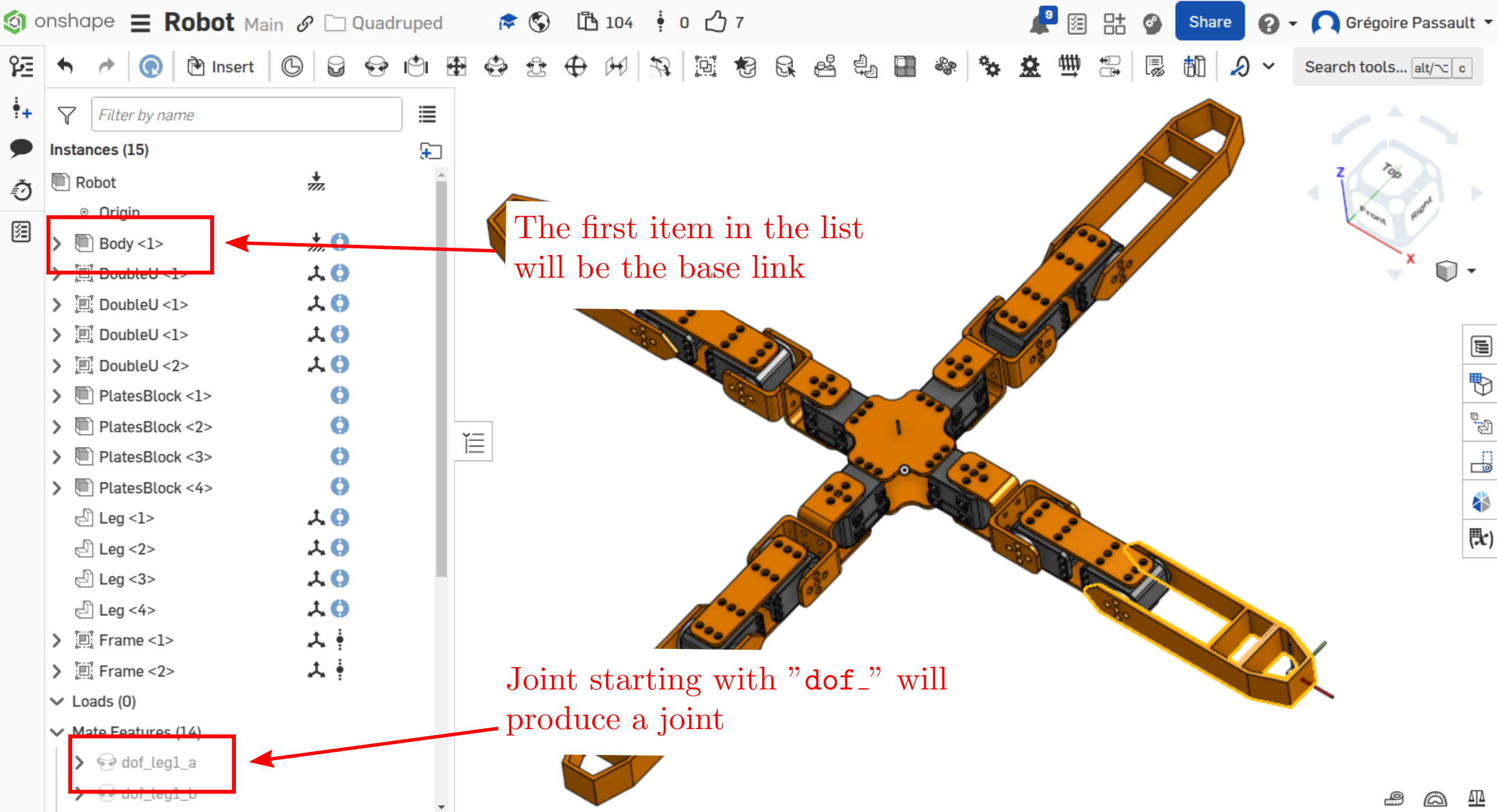
onshape-to-robotexports an assembly of the robot,Be sure this assembly is a top-level assembly, where instances are robot links (they can be parts or sub-assemblies),
The first instance in the assembly list will be considered as the base link,
All the instances in the assembly will become links in the export
Mate connectors should have special names (see below for details):
dof_name: for degrees of freedomframe_name: to create a frame (site in MuJoCo)fix_name: fix two links together, causingonshape-to-robotto merge themclosing_name: to close a kinematic loop (see Handling kinematic loops)Other mates are not considered by
onshape-to-robot
Orphaned links (that are not part of the kinematic chain) will be fixed to the base link, with a warning
Specifying degrees of freedom
To create a degree of freedom, you should use the dof_ prefix when placing a mate connector.
If the mate connector is cylindrical or revolute, a
revolutejoint will be issuedIf the mate connector is a slider, a
prismaticjoint will be issuedIf the mate connector is fastened, a
fixedjoint will be issued
Note
You can specify joint limits in Onshape, they will be understood and exported
Inverting axis orientation
You sometime might want your robot joint to rotate in the opposite direction than the one in the Onshape assembly.
To that end, use the inv suffix in the mate connector name. For instance, dof_head_pitch_inv will result in a joint named head_pitch having the axis inverted with the one from the Onshape assembly.
Naming links
If you create a mate connector and name it link_something, the link corresponding to the instance
on which it is attached will be named something in the resulting export.
Adding custom frames in your model
If you want to track some frames on your robot, you can do the following:
Connect any part to your robot using mate relations in OnShape
Name one of these relations
frame_something, whensomethingwill be the name of the produced frameIn URDF, it will produce a dummy link connected to the parent link with a fixed joint
In MuJoCo, it will result in a site

Here is a document that can be used (be sure to turn on “composite parts” when inserting it, use the frame composite part): Onshape frame part
Note
The instance used for frame representation is only here for visualization purpose and is excluded from the robot.
You can however include it by setting draw_frames to true in the config file, mostly for debugging purposes.
Joint frames
Joint frames are the ones you see in OnShape when you click on the joint in the tree on the left. Thus, they are always revolving around the z axis, or translating along the z axis.